





Zoho Bigin Workflow Automation helps Sales teams turn sales processes into automated workflows, where follow up tasks and appointment reminders can be created based on predefined rules. Salespeople can remember many customers, but they cannot remember every call, appointment and follow up throughout a working day. The problem is often not that employees lack responsibility, but that too many tasks depend on memory and manual actions. When an appointment is recorded in the CRM but there is no mechanism to create a reminder or the next task, a sales opportunity can still be forgotten. Zoho Bigin Workflow Automation helps solve this by turning predefined rules into automated actions.

What is Workflow Automation in Zoho Bigin?
Zoho Bigin Workflow Automation is a mechanism that allows businesses to set rules so the system automatically performs an action when a specific condition occurs.
Simply put, businesses can define a rule:
When condition A occurs → if condition B is met → the system automatically performs action C.
For example, when a sales opportunity moves to the “Consulted” stage, Bigin can automatically create a Task for the assigned employee to make a follow up call. Or if an opportunity has no activity for a certain period of time, the system can create a task reminding Sales to contact the customer again.
Bigin builds Workflows around three main components: Trigger, the point at which the Workflow is activated; Condition, the criteria that determine which records the Workflow applies to; and Action, the action the system will perform. An Action can run immediately or be scheduled for a later time.
The important point is that Workflow does not replace Sales’ judgment about which customers need attention. It helps the system automatically perform repetitive tasks where the business has already defined clear rules.
Before setting it up: Identify the right rule to automate
Do not start by opening Automation and creating as many Workflows as possible.
First, identify a real situation that Sales frequently forgets or spends time handling manually.
For example: Customer has been consulted → Sales needs to call back after 2 days → if there is no result, continue creating a follow up task.
This can then be converted into the following structure:
- Trigger: Opportunity moves to the “Consulted” stage.
- Condition: The opportunity is still in this stage.
- Action: Create Task “Call customer back”.
If you want to create a reminder based on a specific date, Bigin also allows Workflows to be triggered based on the value of a date or date and time field, such as creating a task based on an appointment date or a certain number of days before or after that date.
How to set up a Workflow to automatically create a Task for Sales
Suppose the business wants to create a simple rule:
When a sales opportunity is created or updated and meets the required conditions → Bigin automatically creates a Task for Sales to follow up.
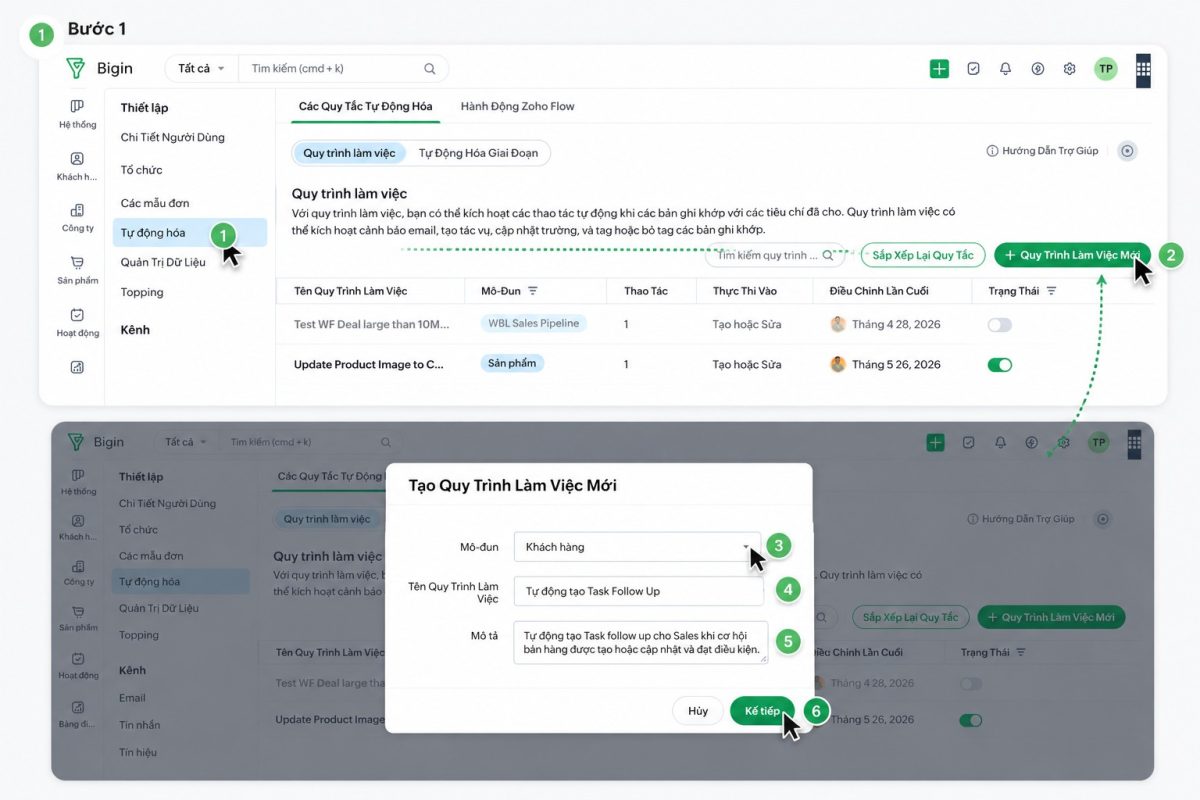
Step 1: Go to the Workflow section
In Zoho Bigin, go to:
Settings → Workflows → + New Workflow
In the Workflow creation window, select the module where the Workflow should apply. If you want to automate sales opportunities, select Pipelines and choose the relevant Team Pipeline.
Then name the Workflow, for example:
Automatically Create Follow Up Task
It is recommended to use a clear name from the beginning so that when the number of Workflows increases, administrators can still understand what each rule does.
Bigin also allows you to add a description for the Workflow before moving to the next configuration step.
Step 2: Choose when the Workflow starts running
After creating the Workflow, the next step is to choose when the system should automatically execute the rule. Zoho Bigin provides two main approaches: triggering when customer or sales opportunity information changes, or triggering based on a specific date and time.
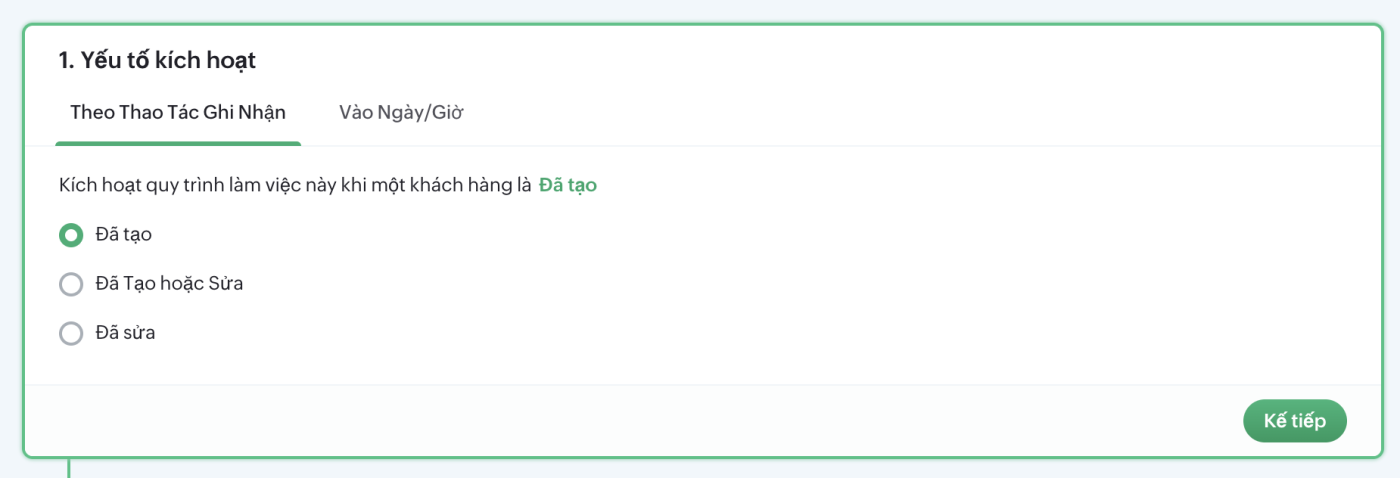
1. Trigger when information is created or updated
A Workflow can run when new information is created or when existing information is changed:
- Created: Runs when a new customer or sales opportunity is created.
- Edited: Runs when customer or opportunity information is updated.
- Created or Edited: Runs in both cases above.
For example, if the business wants to automatically create a Task when an opportunity moves to the “Consulted” stage, the Workflow can be configured to run when the opportunity information is updated.
2. Trigger based on a date or time
If the goal is to remind Sales before an appointment or an important time-based milestone, use this approach.
Under On a Date/Time, the business selects an existing date field in the customer or opportunity information, such as Appointment Date. The Workflow can then be configured to run on, before or after that date based on the desired time period.
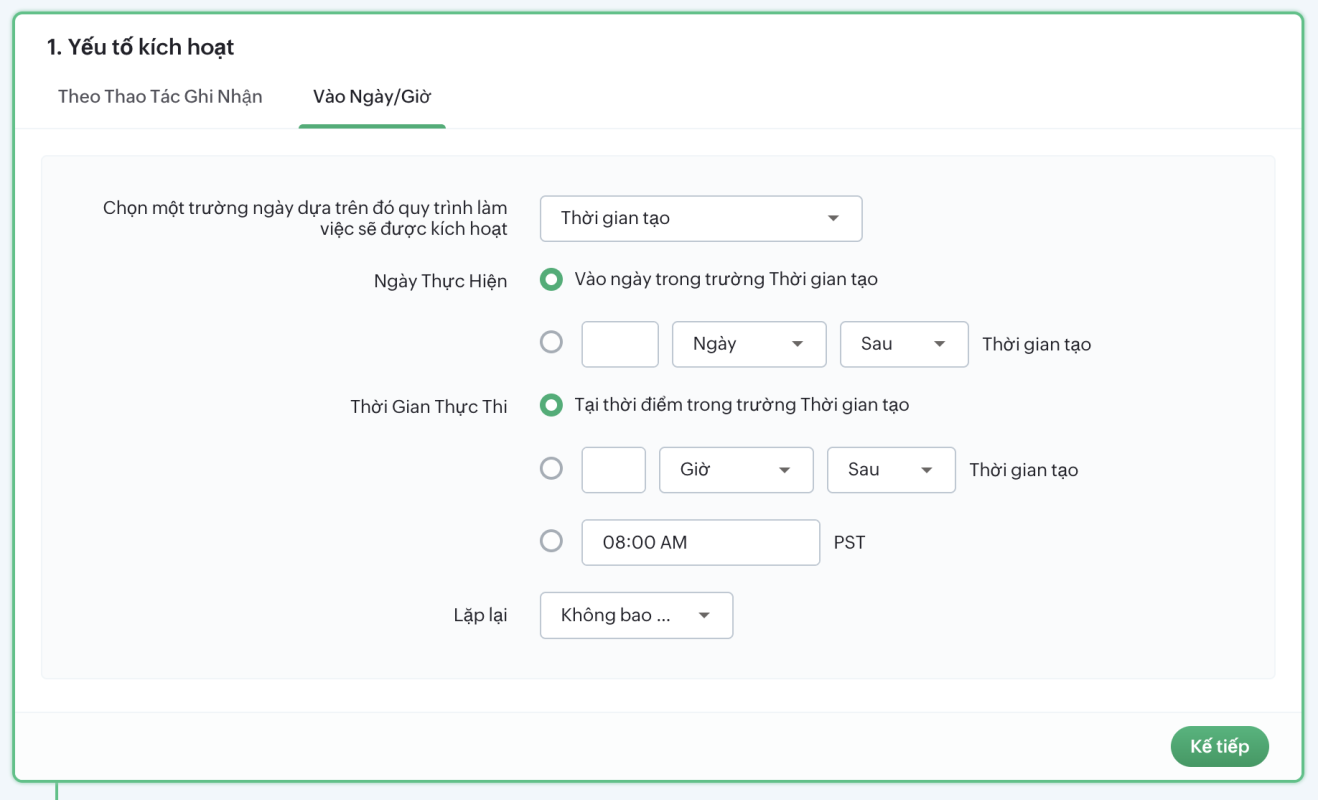
For example: Appointment Date: 20/08
→ Workflow runs 1 day before
→ Automatically create Task: Confirm appointment
This setup is particularly suitable for processes with clear time-based milestones such as customer callbacks, appointment confirmations, consultations or post-quotation follow ups.
Step 3: Set conditions so the Workflow applies to the right records
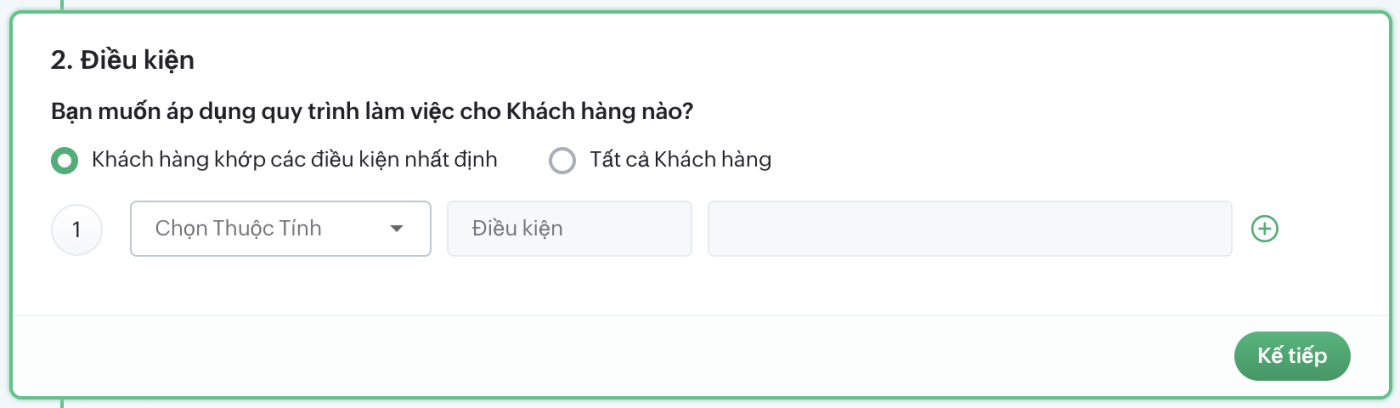
After determining when the Workflow starts running, you need to set conditions so Bigin knows which customers or opportunities should be covered by this rule.
For example, the business may not want to automatically create Tasks for every sales opportunity, but only for opportunities that have already been consulted. In that case, the condition can be:
Sales Stage → is → Consulted
If tighter control is required, multiple conditions can be combined using AND or OR. With AND, all conditions must be true at the same time. With OR, only one of the conditions needs to be met.
For example:
Sales Stage = Consulted
AND
Status ≠ Won
The Workflow will then only apply to opportunities that have been consulted but have not yet been closed, instead of creating additional tasks for customers who have already completed the sales process.
Step 4: Automatically create a Task
After determining when the Workflow runs and which opportunities it applies to, the next step is to configure the automated action. For the Sales appointment reminder use case, the appropriate option is to automatically create a Task.
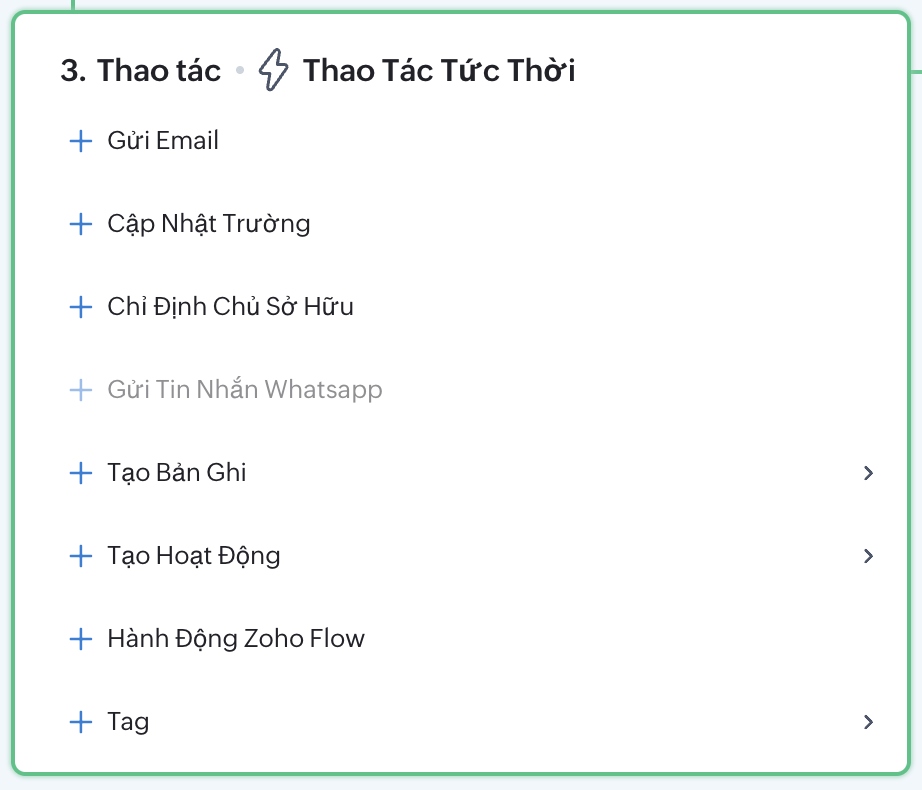
Under Actions, select Task. Here, you can configure the task to be created immediately when the Workflow is triggered or after a certain period of time if you want Sales to have time to prepare before taking action.
For example, if you want Sales to call the customer back after 2 days, you can configure the key information as follows:
Task Name: Call customer back after consultation
Owner: Employee responsible for the opportunity
Due Date: Date the task must be completed
Priority: Task priority level
Related To: Corresponding sales opportunity
When the Task is assigned to the right person and linked to the right sales opportunity, Sales can see the task directly while managing the customer. Instead of having to remember it or create a separate reminder, the system automatically creates the task based on the predefined rule.
Step 5: Set up a Workflow based on an appointment date
If the business has stored time-based milestones such as Appointment Date, Demo Date, Call Back Date or Expected Contact Date in Bigin, these fields can be used to create automated Workflows. This is particularly useful when Sales needs to prepare for or confirm an appointment but does not want to remember every individual time-based milestone.
For example, if a customer has an Appointment Date of 20/08 and the business wants Sales to confirm the appointment one day in advance, the Workflow can be configured as follows:
Trigger: On a Date/Time
Date Field: Appointment Date
Execution Date: 1 day before the appointment
Action: Create Task
Task: Prepare and confirm appointment
Owner: Opportunity owner
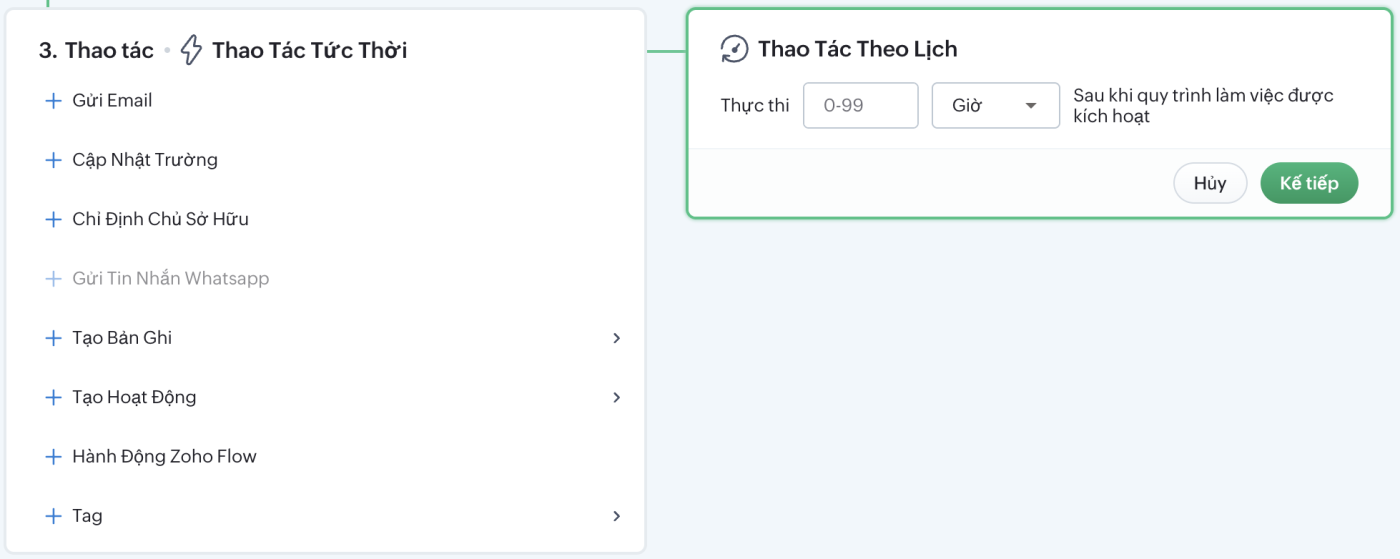
At the configured time, Bigin will automatically create a Task for the assigned employee. Sales only needs to open the task list and follow the schedule, instead of manually creating reminders for every customer.
This setup is suitable for processes with clear time-based milestones, such as consultations, demos, surveys, customer meetings or callbacks after a specific period. Bigin allows Workflows to run based on date fields and set the execution time before or after the selected date according to the desired time period.
What should a complete Workflow look like?
To make this easier to visualize, a sample process for a Sales team can be designed as follows:
| Situation | Condition | Automated Action |
|---|---|---|
| Customer has been consulted | Stage = Consulted | Create callback Task |
| Quotation has been sent | Stage = Quotation | Create follow up Task |
| Appointment scheduled | Appointment date is approaching | Create confirmation Task |
| Opportunity has no activity | No activity for the defined period | Create follow up Task |
| Customer has closed | Stage = Won | Update information or create the next step |
Bigin also provides an official example of automatically creating a Task for an employee when an opportunity remains in certain stages for longer than a specified period, showing that Workflow can be used to handle situations that Sales teams commonly overlook.
Do not automate everything
Automation is only effective when the rules behind it are clear.
If a business creates too many Workflows, Sales may receive a large number of unnecessary Tasks and notifications. At that point, the problem is no longer “Sales forgets tasks”, but rather Sales has too many automatically generated tasks.
A good Workflow should answer three questions:
Does this task happen repeatedly?
If not, it may not need to be automated.
Is there a clear rule that allows the system to determine when it should be performed?
If every customer needs to be handled differently, consider this carefully before creating a Workflow.
If automated, will this action genuinely save Sales time or reduce the risk of missing a task?
If the answer is yes, it is a good candidate for Automation.
In particular, with Scheduled Actions, Bigin will recheck the record’s conditions at the time the action is executed. If the record no longer meets the conditions, the scheduled action may not be executed. This is an important point to check when designing time-based Workflows.
5 principles for effective Workflow Automation
1. Start with a specific problem.
Do not automate simply because the system has an Automation feature. Start with a task that Sales frequently forgets or spends too much time performing.
2. Keep conditions simple.
The more complex the conditions, the harder the Workflow is to troubleshoot when an issue occurs.
3. Make Workflow names easy to understand.
“Follow Up 01” is not useful when a business has 20 Workflows. “Create Callback Task After Consultation” will be much easier to manage.
4. Test before deploying widely.
Test with a few records first to verify the Trigger, Condition, Task owner and execution time.
5. Review Automation regularly.
When the Sales process changes, existing Workflows also need to be reviewed. A rule that was once correct can become a source of incorrect Tasks if the process has changed.

Zoho Bigin Workflow Automation is not intended to replace Sales in building customer relationships. The value of Automation lies in taking clearly defined, rule-based tasks out of employees’ memory and allowing the system to handle them at the right time.
Starting with something as simple as automatically creating a Task before an appointment, businesses can gradually build a Sales process that relies less on employees having to remember everything themselves. When customer data, Pipeline, appointments and tasks are connected, teams can focus more on consulting and closing deals instead of managing repetitive tasks.
At WBL Group, implementing Automation does not start with the question “What can Bigin automate?” It starts with “Which steps in the business process are easy to forget, prone to errors or taking too much time?” From there, Automation is designed around the actual business process, with just enough automation to create value without making the system unnecessarily complex.