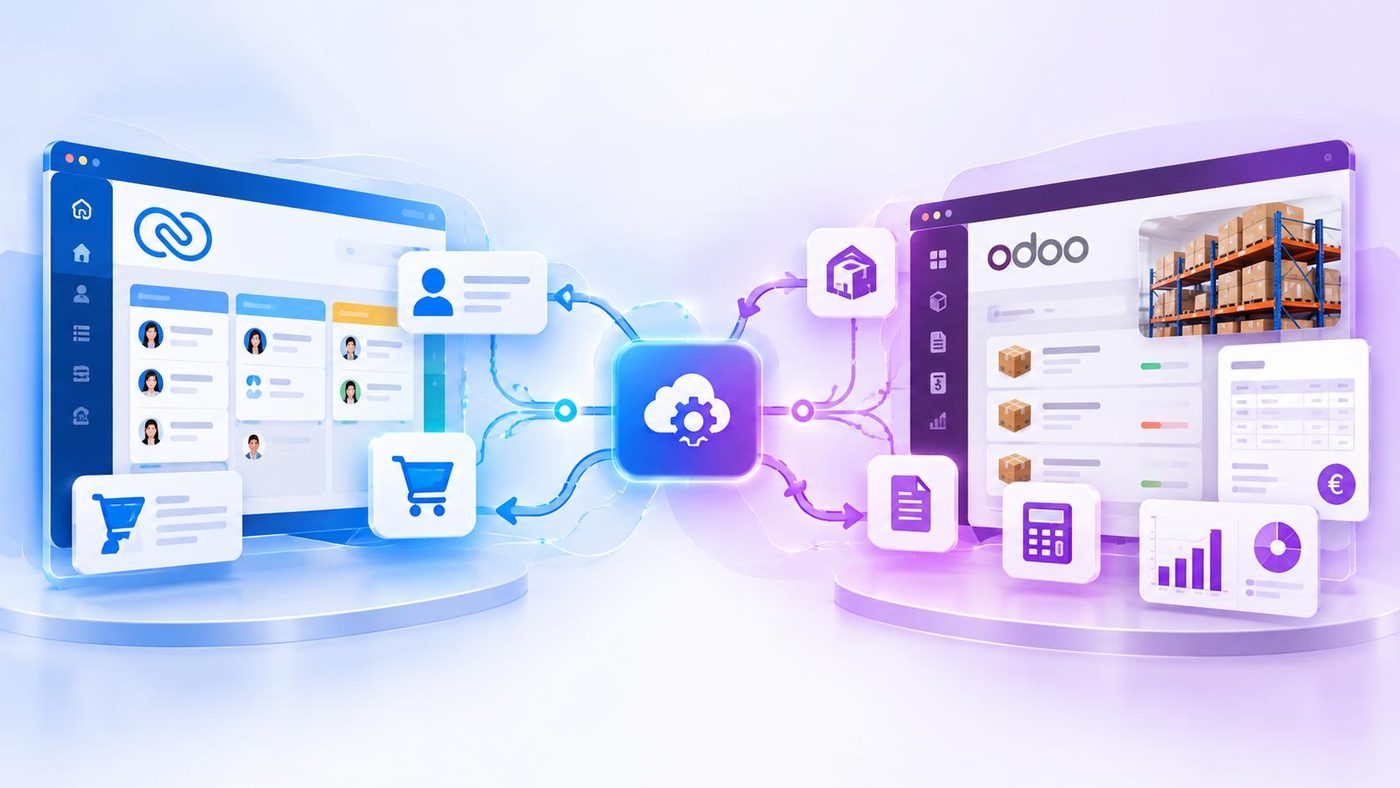






Export Sales Reports in Zoho Bigin helps businesses take Sales data out of the system for storage, sharing or further processing when needed. Instead of gathering data from multiple Excel files or asking each Sales representative to submit separate figures, businesses can directly retrieve the information that has already been updated in Bigin.
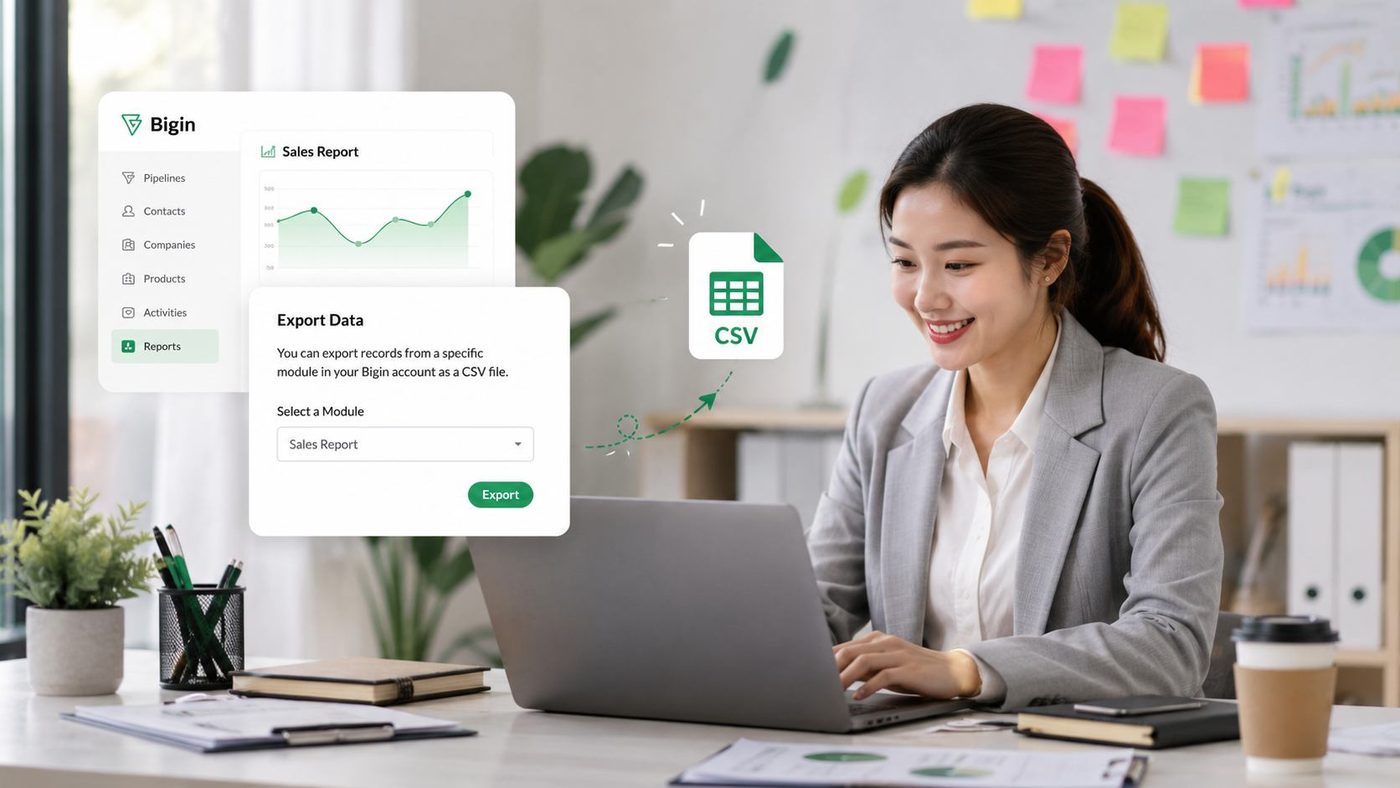
Zoho Bigin supports exporting data from modules as CSV files. Users can choose all data, data within a View or only the specific information fields they need. This allows businesses to retrieve exactly the data required for each reporting purpose.
How to Export Sales Reports in Zoho Bigin?
To Export Sales Reports in Zoho Bigin, the basic process can be completed in 3 steps:
Step 1: Select the data to export
Identify the module containing the information you need, such as Contacts, Companies or Pipelines. If you have already created a View to filter the data, you can select that View instead of exporting all information.
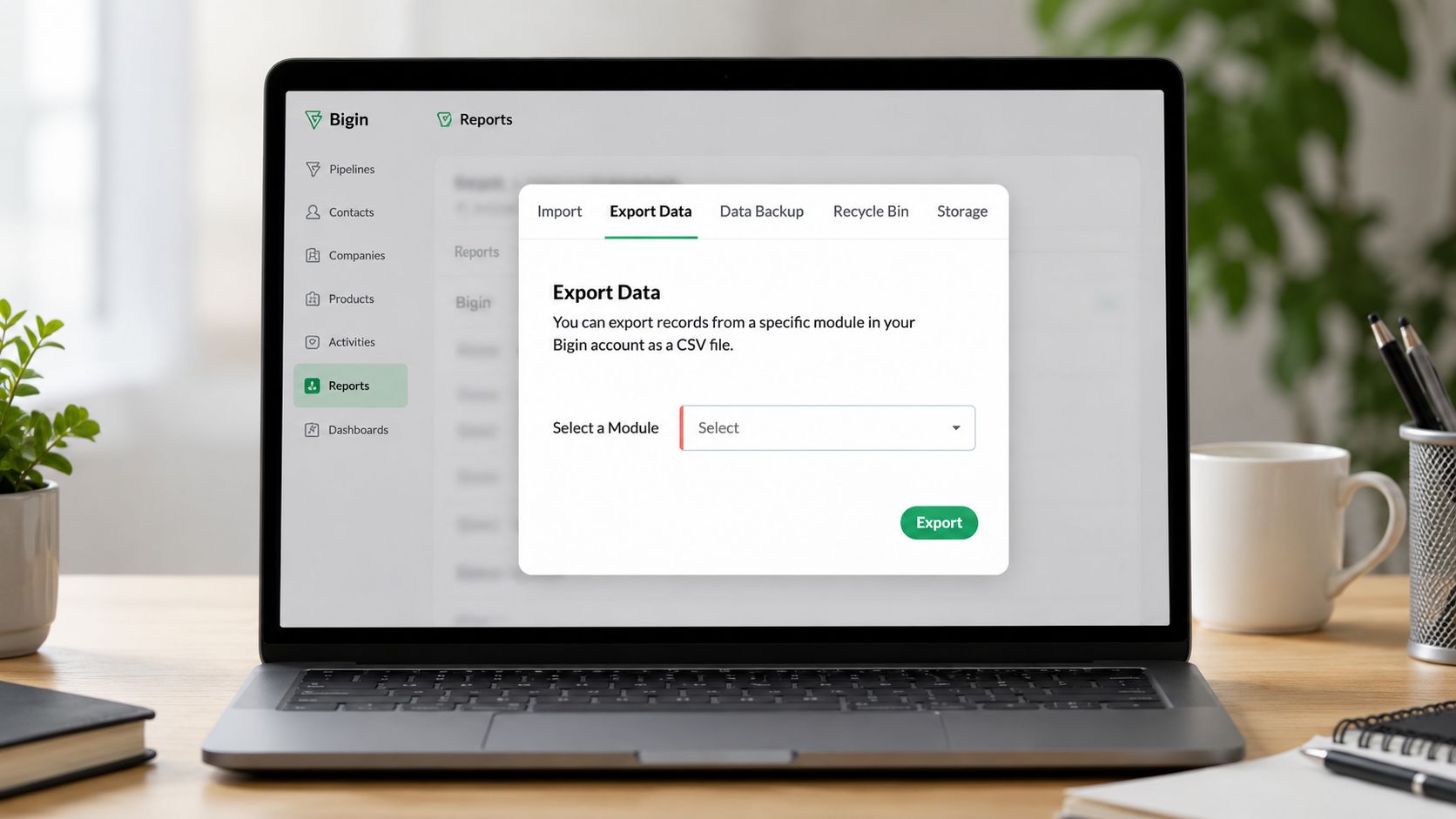
Step 2: Select the information fields
When you Export Sales Reports in Zoho Bigin, businesses do not necessarily need to export all available data. They can select only the information fields required for the reporting purpose. Bigin allows users to select all fields, fields included in the View or specific fields they want to export. For example, with Sales opportunity data, a business may only need the opportunity name, owner, deal value and status instead of exporting all information in the system.
Step 3: Export the data
After determining the data to retrieve, proceed with the export. Bigin will export the data as a CSV file, which users can open with spreadsheet tools and continue processing.
This means that instead of copying each row of data into Excel manually, businesses can directly retrieve information already stored in the CRM and use it for reporting.
What Data Should You Export to Track Sales?
Not every report requires the same type of data. If a manager wants to review Sales opportunities, they can focus on information such as opportunity name, owner, Sales stage, deal value and status.
If the goal is to review customers, Contact or Company data will be more appropriate. When comparing the performance of individual employees, businesses can also include owner information for further analysis.
The important point is to define the purpose before selecting the data. A file with too many fields does not necessarily make a report better; instead, it can make the information more difficult to read and process.
What Can You Do With the Exported CSV File?
After you Export Sales Reports in Zoho Bigin, the CSV file can be opened with spreadsheet tools for further filtering, sorting or consolidation based on the business’s needs.
For example, a manager can export a list of open opportunities and then categorize them by owner or Sales stage to prepare for a Sales meeting.
What is important is that the data collection has already been completed through the CRM. Managers do not need to ask each employee to create a separate file and then combine everything. Since the data comes from the same system, the subsequent consolidation process is also more consistent.
Exported Data Is Only as Good as the Data Updated in Bigin
This is one of the most important things businesses need to keep in mind.
If Sales has not updated the opportunity status, deal value or customer information, the exported file will also be missing that data. The ability to quickly retrieve a report cannot replace the need to update information correctly during the actual work process.
Therefore, businesses should establish a consistent approach to updating data from the beginning. When Sales completes a step in the selling process, the relevant information should be updated in Bigin instead of waiting until the end of the month to add it.
When data is updated consistently, reports can accurately reflect the actual Sales situation.
You Do Not Always Need to Export Data
If the goal is simply to view the current Sales situation, managers can monitor it directly in Bigin. Export Sales Reports in Zoho Bigin is more appropriate when the business needs to store, share or move information to another tool for further analysis.
This also helps businesses avoid turning report exports into a repetitive daily task. The CRM should be the place where data is centralized and updated; a CSV file should only be created when the business actually needs to use the data outside the system.
With WBL Group, when implementing Zoho Bigin, report setup should begin with the question “What does the business need to know?”, and only then determine which fields need to be stored and how the data should be retrieved.
When data is organized correctly from the beginning, Export Sales Reports in Zoho Bigin is no longer a task that requires manually gathering figures from multiple sources. By retrieving only the data needed from the CRM, businesses already have a foundation for tracking and analyzing Sales performance more clearly.