




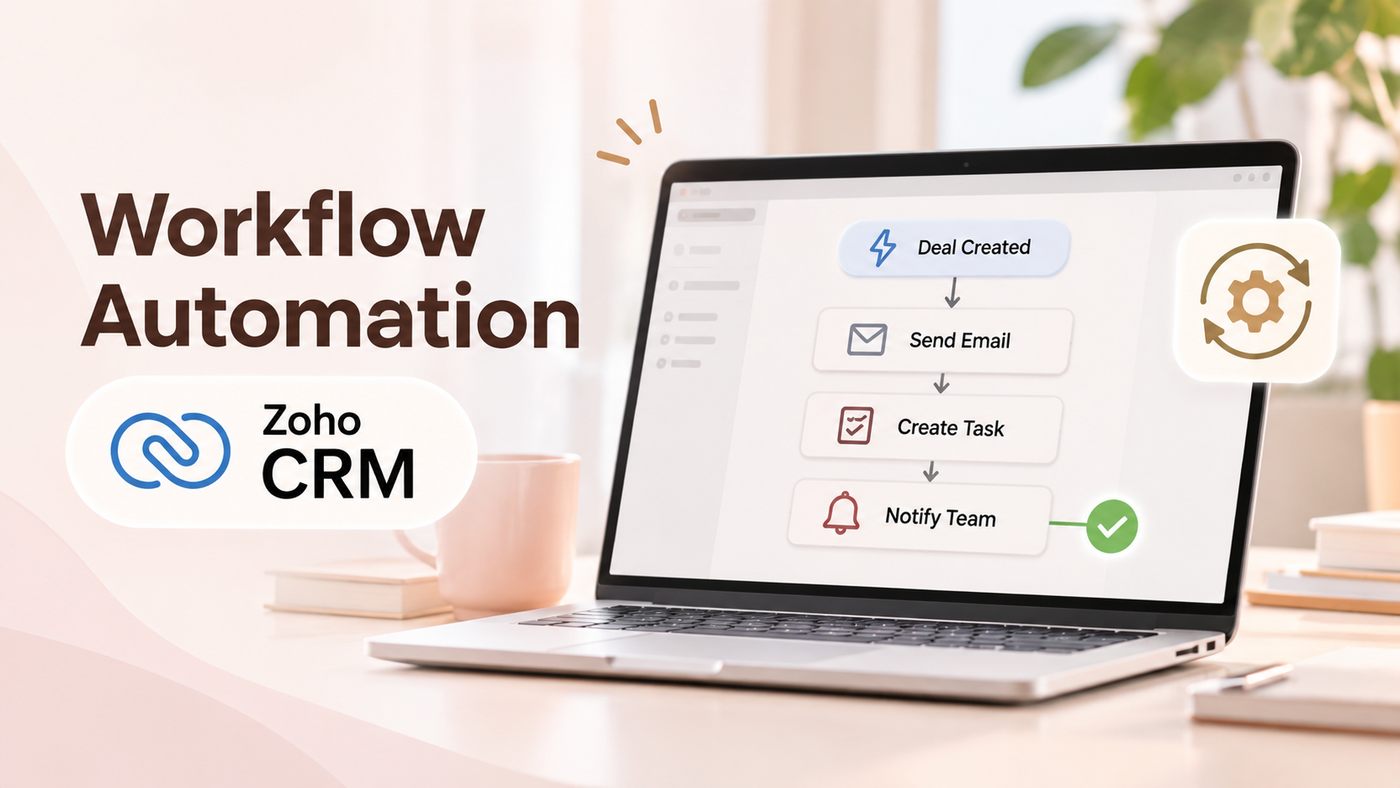
When a sales representative receives a new lead, they often need to carry out several tasks in sequence, such as sending a confirmation email, updating the lead status, creating a follow-up reminder and tracking the customer’s response. When handled entirely manually, these tasks can easily be overlooked, especially as the number of leads increases.
Workflow Automation in Zoho CRM allows businesses to set up rules that enable the system to perform tasks automatically when data meets predefined conditions. As a result, employees no longer need to repeat the same actions for every lead, while ensuring that each step is carried out according to a consistent process.
This article provides a step-by-step guide to setting up workflow automation rules in Zoho CRM through the following scenario: when a lead is moved to the Qualified status, the system automatically sends an email and creates a task reminding the sales representative to follow up with the customer.
How Does Workflow Automation Work in Zoho CRM?
Workflow Automation involves setting up conditions and actions that allow the system to perform certain tasks on behalf of employees. In Zoho CRM, the Workflow Rules feature allows businesses to define when a rule is triggered, which records need to be processed and what actions the system should perform.
An automation rule typically consists of three components:
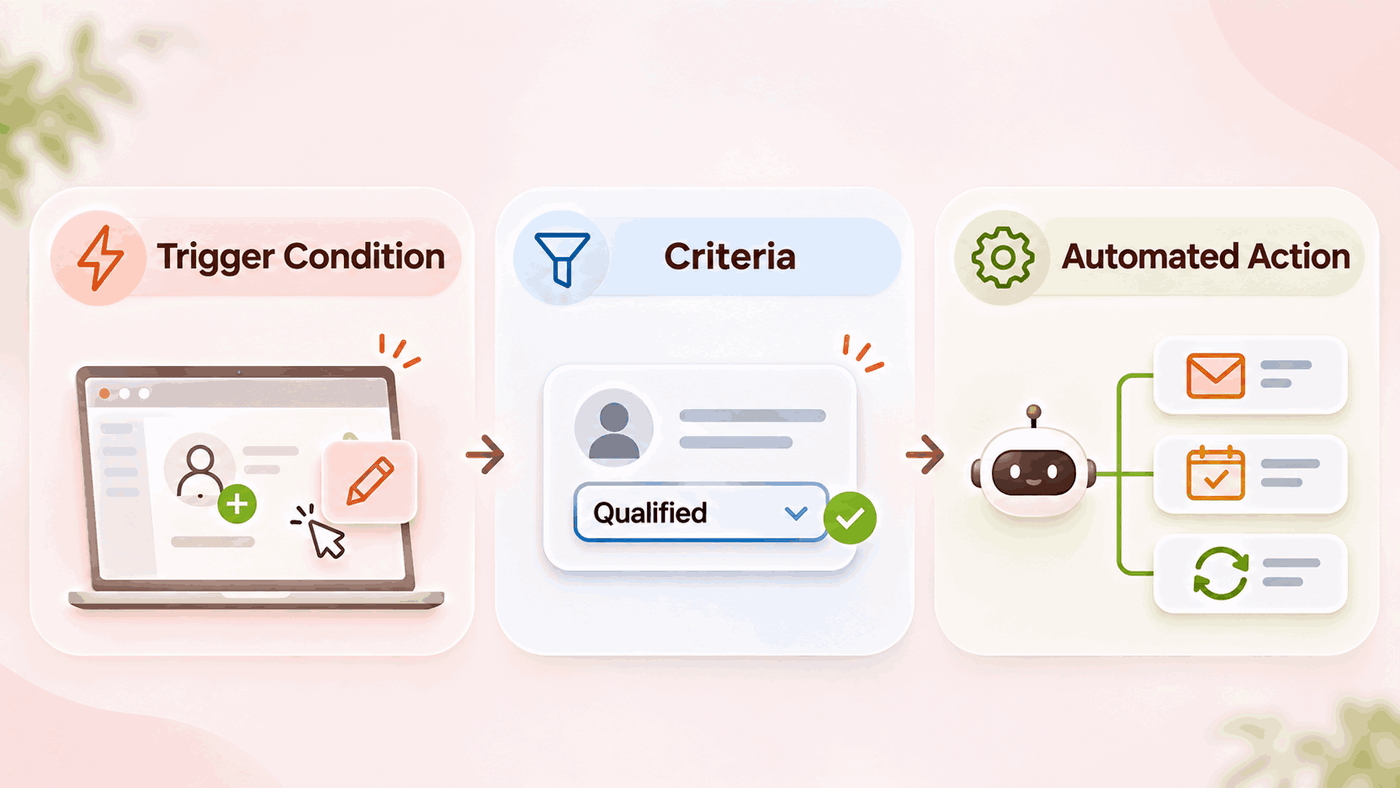
Trigger: Defines the event that activates the rule, such as creating a new customer record or editing customer information.
Conditions: Specify which records meet the criteria for processing. For example, the rule may only apply when a lead’s status changes to Qualified.
Automated Actions: Define the tasks the system needs to perform, such as sending an email, creating a task or updating information.
Zoho CRM supports actions that can be performed immediately when a rule is triggered or according to a predefined schedule. This allows businesses to automate both tasks that require immediate attention and activities that need to be carried out after a certain period of time.
How to Set Up Workflow Automation in Zoho CRM
Suppose the Sales team manages leads in Zoho CRM. When a sales representative confirms that a lead has a genuine need and changes the status to Qualified, the business wants the system to automatically send a confirmation email and create a task reminding the representative to follow up with the customer.
Step 1: Create an Automation Rule
Log in to Zoho CRM, select Setup, go to Automation and open Workflow Rules. Select Create Rule to create a new rule.
In the setup section, select the Leads module because the workflow applies to leads. Give the rule a name, such as “Automated Follow-up for Qualified Leads”, so it can be easily identified and managed later.
Step 2: Select the Trigger
Under When, select the Edit action so that the rule is evaluated whenever customer information is edited.
For this scenario, the rule needs to monitor changes to the Lead Status field. The business should configure it to respond only when the status is updated according to the specified criteria, rather than triggering every time an employee edits any customer information.
Step 3: Set the Conditions
Under Condition, select the Lead Status field and set its value to Qualified.
This condition allows the system to identify the correct group of leads that need to be processed. When a lead’s status meets the specified condition, Zoho CRM will execute the actions associated with the rule.
Step 4: Configure Automated Actions
Under Instant Actions, add the actions that need to be performed immediately after the rule is triggered.
For the example above, two actions can be configured:
The first is Email Notification. Select or create an email template to send to the customer, confirming that the business has received their inquiry and will contact them to provide a consultation. The email content can use existing data fields, such as the customer’s name or company name, to personalize the message.
The second is Task. Create a new task named “Contact Customer for Consultation”, assign it to the responsible employee and set a due date. This allows employees to track their tasks directly in the system without having to remember them or create separate reminders.
In addition, businesses can use Field Update to automatically update a data field when the conditions are met. For example, the system can update the follow-up status to “Awaiting Contact” if the corresponding field has been configured.
Step 5: Save and Test the Rule
Once the configuration is complete, save and activate the Workflow Rule. Before applying it across the business, it is recommended to test it using a sample lead record to check whether all actions work as expected.
When changing a lead’s status to Qualified, verify that the email is sent to the correct address, the task is assigned to the right employee and the data is updated accurately. If any action does not work as expected, review the trigger conditions, user permissions and configuration of each action.
Sales Activities That Can Be Automated
Once the basic rules are in place, businesses can expand workflow automation to cover various other activities in the sales process.
Automatically Send Emails When a New Lead Is Created: When a lead is created through a website form or entered into the system, Zoho CRM can automatically send an email confirming that the information has been received. The assigned employee can also receive a notification so they can follow up promptly.
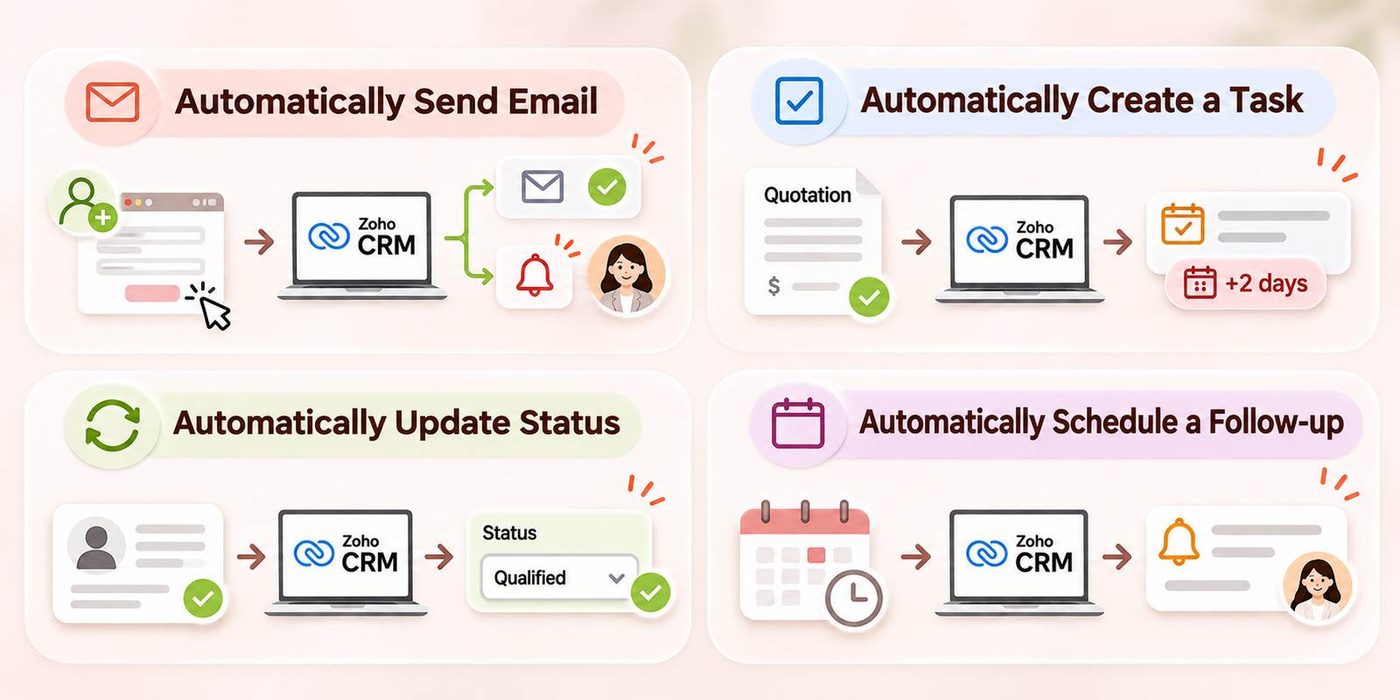
Automatically Create a Task After Sending a Quotation: When a sales opportunity moves to the quotation stage, the system can create a task reminding the employee to follow up after two days. This helps prevent situations where quotations are sent but customer responses are never followed up.
Automatically Update Customer Status: When data meets the configured conditions, the system can update the corresponding information field to reflect the current progress. This makes it easier for managers to monitor customer status without having to ask employees to update the information repeatedly.
Automatically Schedule Follow-up Reminders: Businesses can configure scheduled actions to remind employees to contact customers at appropriate times, such as before a service renewal date or after a certain period has passed since the last consultation.
These applications help reduce manual work while ensuring that important steps in the sales process are completed at the right time.
Key Considerations When Implementing Workflow Automation
Not every task should be automated. Businesses should start with tasks that are frequently repeated, have clearly defined conditions and do not require extensive subjective judgment from employees.
First, it is important to standardize how customer and sales opportunity statuses are used. If employees update data in different ways, automation rules may not be triggered as expected.
In addition, businesses should review how different rules interact to prevent a single data update from generating multiple duplicate emails or tasks. In particular, rules triggered by record edits need appropriate conditions to avoid running again unexpectedly.
Businesses should also check access permissions, email templates, task owners and due dates before putting the workflow into official use. As business operations change, automation rules should be reviewed and adjusted accordingly.
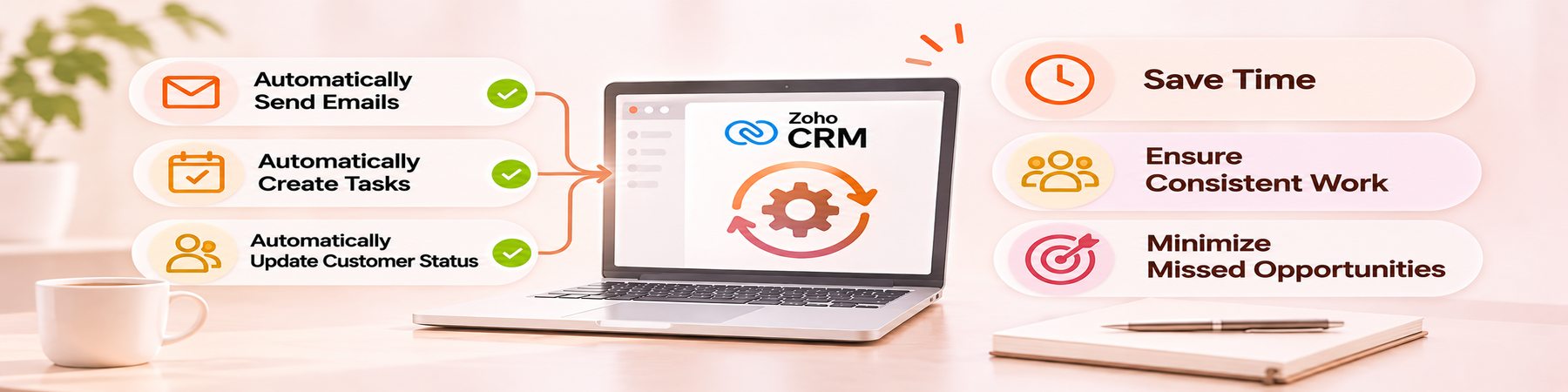
Workflow Automation in Zoho CRM helps businesses reduce repetitive tasks such as sending emails, creating follow-up reminders and updating customer statuses. When configured correctly, the system not only saves employees time but also helps Sales teams work more consistently and avoid missing opportunities.
WBLGroup supports businesses in consulting, designing and implementing Zoho CRM based on their actual operational processes, from customer data management to sales activity automation, helping them build a more efficient and structured way of working.